From Intune Data to Actionable Insight: CommandCTRL to the Rescue
As organizations continue to embrace cloud-first workplace management, Microsoft Intune has become the de facto standard for modern endpoint management. It enables IT teams to manage, secure, and govern devices from anywhere, making it a cornerstone of many digital workplace strategies.
Over the past months, I have been involved in an increasing number of Microsoft 365 and Intune projects. While Intune delivers tremendous value as a management platform, I repeatedly encounter the same challenge: when users experience performance issues or intermittent problems, gaining insight into the root cause can be surprisingly difficult.
The question then becomes: how do you move from device management to truly understanding the user experience?
While evaluating ways to help customers improve endpoint management and support operations, I found myself thinking again about Liquidware CommandCTRL
Although it is still relatively unknown in many Microsoft-focused environments, I believe it addresses a critical gap in modern endpoint management. In this article, I’ll explore where Microsoft Intune excels, where its limitations become apparent, and how CommandCTRL complements the Microsoft ecosystem by providing real-time visibility, diagnostics, and remediation capabilities that go beyond traditional management tooling.
Microsoft Intune: A Strong Foundation for Modern Endpoint Management
There is no doubt that Intune has transformed the way organizations manage endpoints. As a cloud-native Unified Endpoint Management (UEM) platform, it provides centralized control over devices, applications, and security policies across a diverse range of operating systems.
Some of Intune’s key strengths include:
- Security and compliance policy enforcement
- Device enrollment and lifecycle management
- Integration with Microsoft 365 and Conditional Access
- Remote actions such as restart, sync, retire, and wipe
- Automated provisioning through Windows Autopilot
These capabilities make Intune an excellent platform for governance, security, and large-scale endpoint administration. For many organizations, this level of control is sufficient until users start experiencing issues.
The Reality of Supporting End Users
Every IT service desk receives familiar support requests:
- "My laptop is running slow."
- "Outlook freezes every morning."
- "The application suddenly stopped responding."
- "My Wi-Fi connection keeps dropping."
- "Teams calls are lagging."
These incidents often have one thing in common: they are difficult to diagnose using management data alone.

While Intune provides valuable information about device health, compliance status, and configuration, it offers limited visibility into what is happening on a device at the exact moment a problem occurs. And that is where troubleshooting becomes challenging.
Limited Real-Time Visibility
Intune primarily relies on collected telemetry and scheduled reporting. While this data is useful for management and compliance purposes, it is not designed to provide a live view of endpoint activity.
When a user reports a problem, administrators often see only a snapshot of historical information rather than the current state of the device. As a result, identifying the root cause frequently becomes a process of elimination.
Missing User Experience Context
One of the most important questions during troubleshooting is:
What is the user actually experiencing right now?
Intune is largely focused on devices and policies. It can tell you whether a device is compliant, but it cannot easily show:
- Which process is consuming excessive resources
- Whether an application is hanging
- If network conditions are impacting performance
- What changed immediately before the issue occurred
Without this context, troubleshooting becomes slower and less precise.
Fragmented Troubleshooting Workflows
To investigate a single incident, administrators often need to switch between multiple tools:
- Intune for device management
- Microsoft Defender for security insights
- Event Viewer for local logs
- Remote support solutions for session access
- Performance monitoring tools for diagnostics
This fragmented approach increases complexity and extends resolution times.
Reactive Rather Than Proactive Support
Because visibility is limited, many support teams are forced into a reactive model. Problems are investigated only after users report them, often leading to escalations and lengthy troubleshooting sessions. The result is higher operational overhead and a less consistent user experience.
The Missing Piece: Live Endpoint Observability
- The challenge is not that Intune lacks data.
- The challenge is that it lacks real-time, contextual insight into the user experience.
- Modern IT teams need more than device status and compliance reports. They need immediate visibility into what is happening on the endpoint while the issue is occurring.
- This is exactly where Liquidware CommandCTRL enters the picture.
Liquidware CommandCTRL: Real-Time Visibility for IT Operations
CommandCTRL was designed to provide live operational insight into endpoints and user sessions.
Where Intune focuses on management and governance, CommandCTRL focuses on observability and troubleshooting. Instead of simply showing whether a device is healthy, it helps answer questions such as:
- What is causing the slowdown?
- Which process is consuming resources?
- Is the issue application-related, device-related, or network-related?
- What is the user experiencing right now?
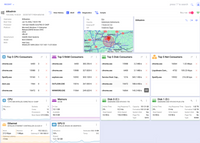
Overview CommandCTRL
This shift from static status information to real-time visibility can significantly improve support effectiveness.
What CommandCTRL Adds to the Modern Workplace
Real-Time Endpoint Monitoring, IT teams gain immediate insight into:
- Active processes
- CPU utilization
- Memory consumption
- Disk performance
- Network activity
- Wi-Fi signal quality
Administrators gain real-time visibility into endpoint activity and can use History Playback to reconstruct events, identify root causes, and determine exactly when performance issues started.

Context-Driven Troubleshooting
Effective troubleshooting depends on context, CommandCTRL enables support teams to understand:
• The user’s activity before and during the incident
• Which application is causing the problem
• Whether the issue is related to hardware, software, or connectivity
This dramatically reduces the time spent searching for root causes.

Overview Consumers
Faster Remediation
Once the source of an issue is identified, administrators can take targeted action immediately.
Examples include:
• Stopping runaway processes
• Investigating active sessions
• Isolating problematic applications
• Resolving issues without taking full remote control of the device
This minimizes disruption for end users while accelerating resolution.
Organizations often benefit from:
• Fewer unresolved performance tickets
• Reduced escalation to second- and third-line support
• Resolve Issues Faster
• Improved service desk efficiency
Better Together: Intune and CommandCTRL
It is important to understand that this is not an either-or discussion.
Intune and CommandCTRL serve different purposes.
Intune remains the platform for:
- Endpoint management
- Security governance
- Compliance enforcement
- Device lifecycle management
CommandCTRL complements these capabilities by providing:
- Real-time endpoint observability
- User experience monitoring
- Live troubleshooting capabilities
- Operational insights for support teams
- History Playback to analyze historical activity
Together, they provide a more complete view of the digital workplace.
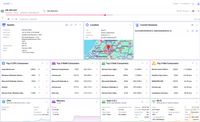
History Playback
Real-World Example
A customer asked me to investigate slow startup times for Microsoft Teams and Office applications. The service desk had already performed an initial analysis but could not identify the root cause due to limited troubleshooting visibility.
By using Liquidware CommandCTRL, we gained deeper insights into endpoint activity and user sessions. The analysis showed that the performance issues were caused by a combination of antivirus activity, update downloads, and high resource utilization.
These root causes were not visible through the standard Microsoft Intune capabilities alone. The key CommandCTRL features that helped identify the issues were History Playback and Real-Time Endpoint Observability.
With these insights, we were able to resolve the issues faster, reduce troubleshooting efforts, and improve the overall user experience. This example demonstrates the value of adding operational visibility to endpoint management.
Conclusion
Microsoft Intune provides organizations with a strong foundation for modern endpoint management, offering the governance, security, and scalability required to manage devices effectively. However, gaining deep insight into the actual user experience and quickly troubleshooting endpoint-related issues can remain challenging.
Liquidware CommandCTRL complements Intune by adding real-time visibility into endpoint performance, user sessions, and potential issues. This enables IT teams to move from reactive troubleshooting toward a more proactive approach, improving efficiency and enhancing the overall employee experience.
By combining Intune’s powerful management capabilities with CommandCTRL’s operational insights, organizations can create a more secure, productive, and user-centric IT environment.
If you would like to learn more about CommandCTRL or discuss how it can complement your existing endpoint management strategy, feel free to reach out to me or contact Liquidware directly.
Thank you for reading. I hope this article has provided valuable insights into how CommandCTRL can extend the capabilities of Microsoft Intune. I welcome your feedback, experiences, and thoughts.